
Data sources
Data sources let forms use records from SharePoint lists, Excel tables, CSV or JSON files, and previous Team Forms responses. Multiple forms can share the same dataset. Signed-in users can use synchronised records offline; public forms retrieve a snapshot when the source is first loaded.
Create a data source
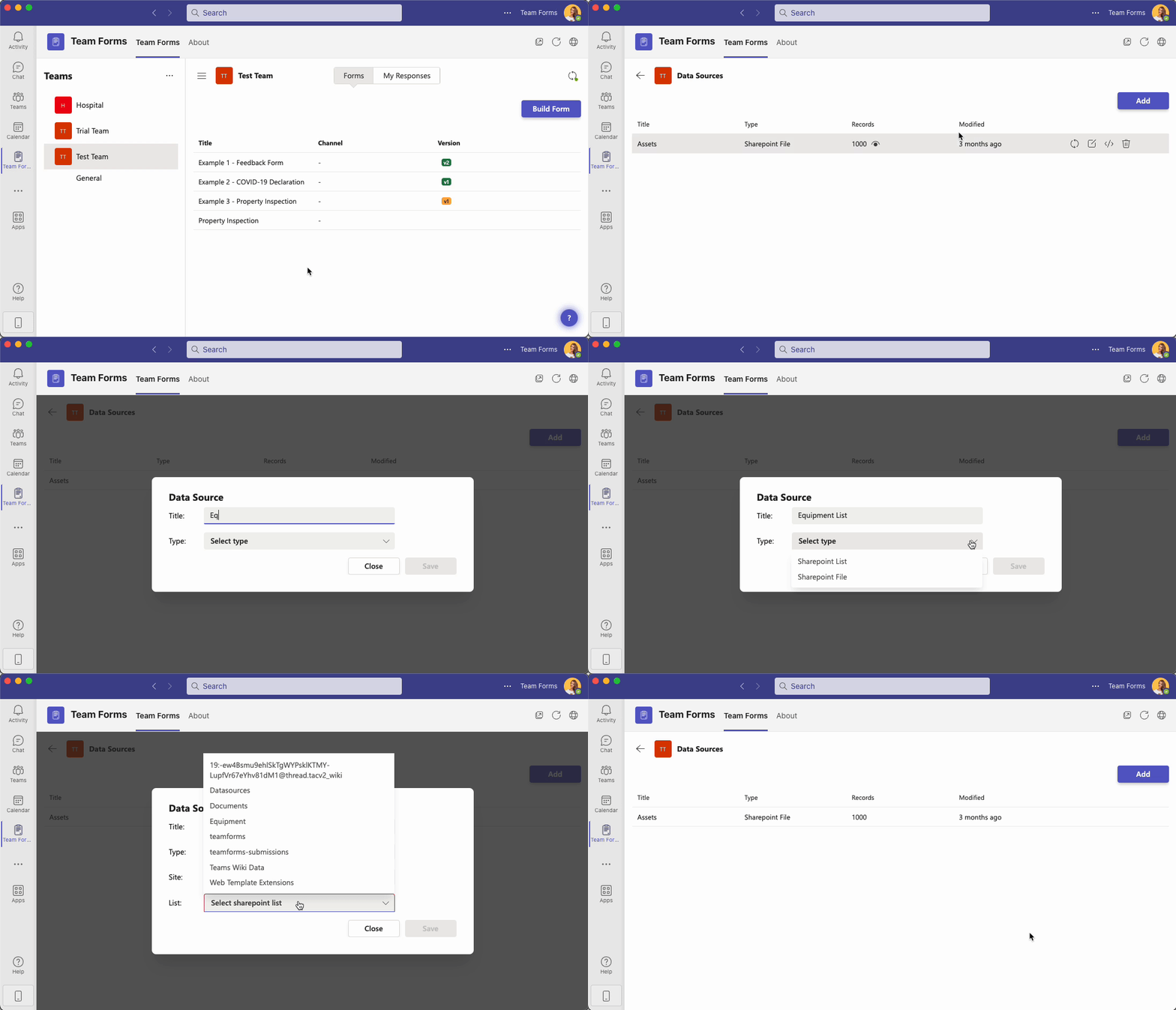
Section titled “Create a data source”- Open the team that should own the data source.
- Open Data sources from the team’s options menu.
- Select the SharePoint site and the list or file containing the data.
- Confirm the source and wait for its initial synchronisation.
Excel sources must contain a defined table rather than an unstructured cell range. If no table appears during setup, see Why do no tables appear for an Excel data source?.
Use it in a form
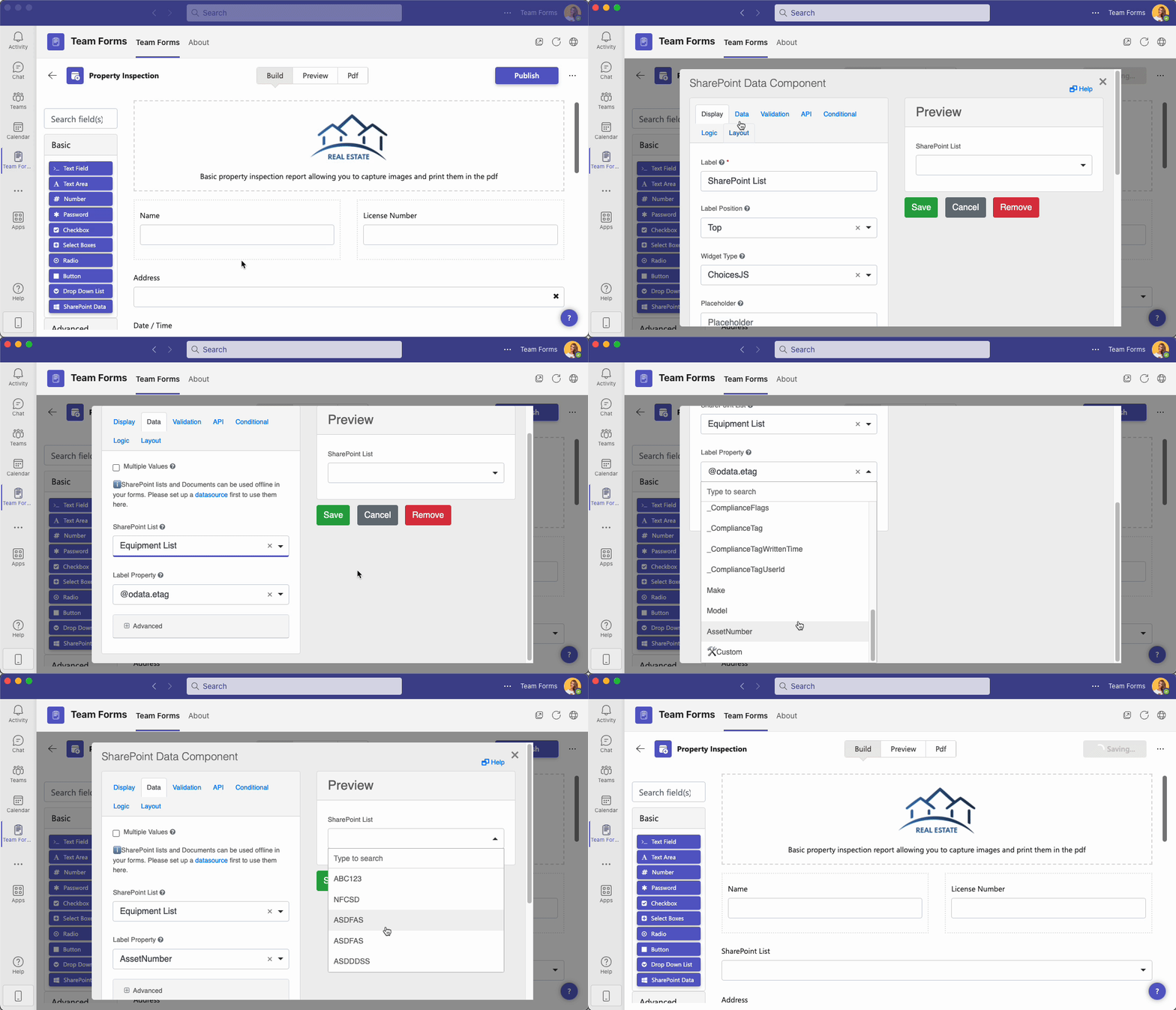
Section titled “Use it in a form”- Create or edit a form.
- Add a SharePoint Data Source component.
- In its Data settings, select the data source and the column to display.
- Preview the form and confirm that the expected values are available to the responder.
The selected record can populate other fields, drive conditional logic, or provide rows for a data grid. For more advanced forms, see filtering a SharePoint drop-down, cascading drop-downs, populating other fields, and populating a data grid.
Managed access and public forms
Section titled “Managed access and public forms”Under Advanced settings → Data access, choose User access to use each responder’s Microsoft permissions, or Managed access to retrieve data using an authorised Microsoft connection. Managed access requires a paid subscription and lets responders use the data without direct SharePoint access.
To use a source on public Anyone links, choose Managed access and turn on Public form access, then make sure the published form references that source. See Managed access and public data sources for setup, connection management, and limits.
Filter data before loading it
Section titled “Filter data before loading it”For SharePoint list and form-submission sources, open Advanced settings → SharePoint query to filter and sort rows on SharePoint. SharePoint list sources also let you select columns and expand lookup and person fields. These settings apply to all forms using the source and run before any component-level filtering.
See Filtering data sources with SharePoint OData for supported operators, examples, and query testing.
Keep data current
Section titled “Keep data current”Team Forms refreshes sources automatically for signed-in users, but changes are not always immediate. You can also refresh a data source manually. Public forms reuse their loaded snapshot until the page is reloaded. If a list is empty, check the source’s access method, connection, and query settings; see Drop-down menu is empty for my users.