Troubleshooting Guide: AADSTS7000112 – Application Team Forms is disabled
What this error means
Section titled “What this error means”If you see the error AADSTS7000112 – Application Team Forms is disabled, it means the Team Forms app has been turned off in your organization’s Microsoft Azure Active Directory.
👉 Only your organization’s IT administrators can fix this by re-enabling the app. This cannot be fixed by Team Forms support.
Fixing the issue (for IT administrators)
Section titled “Fixing the issue (for IT administrators)”1. Confirm the error
Section titled “1. Confirm the error”Check that the user sees AADSTS7000112 on the Microsoft login error screen or in the Azure AD sign-in logs.
2. Locate the Team Forms application
Section titled “2. Locate the Team Forms application”-
Sign in to the Azure Portal with Global Admin or App Admin rights.
-
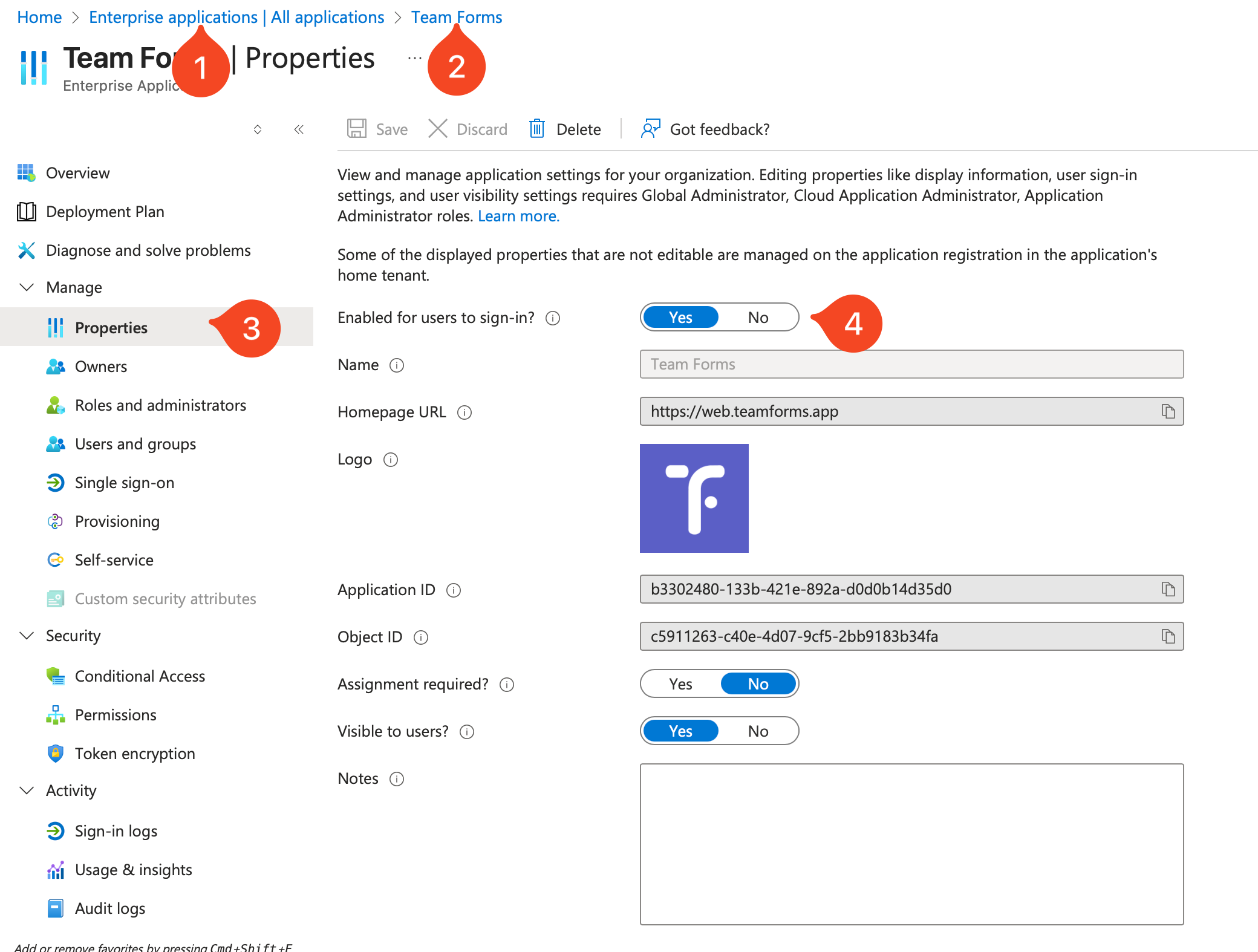
Go to Azure Active Directory > Enterprise Applications.
-
Search for Team Forms and open it.
3. Re-enable sign-in
Section titled “3. Re-enable sign-in”-
In the left menu, select Properties.
-
Set Enabled for users to sign in? to Yes.
-
Click Save.