
Filtering SharePoint drop-down menu
The SharePoint data component can filter the options shown from a data source using JavaScript. This filter runs in the browser after the source has loaded and can use current form answers.
To limit the rows and columns retrieved from SharePoint for every form using a source, configure a SharePoint OData query in the data source’s Advanced settings instead. You can use both: the source query runs first, then the component filter controls the remaining options. Component filtering does not restrict the source data available to public visitors.
Filter options in a component
Section titled “Filter options in a component”-
Navigate to the data tab of the component settings
-
Under the advanced settings you should see a “Filter Query” option which will accept a Javascript expression to filter components by
Type an expression based on the structure of your data source. In the example below, a list of vehicles is filtered to a specific make (Ferrari). Use Sample Item to check the field names available in your expression.
show = item.Make === 'Ferrari'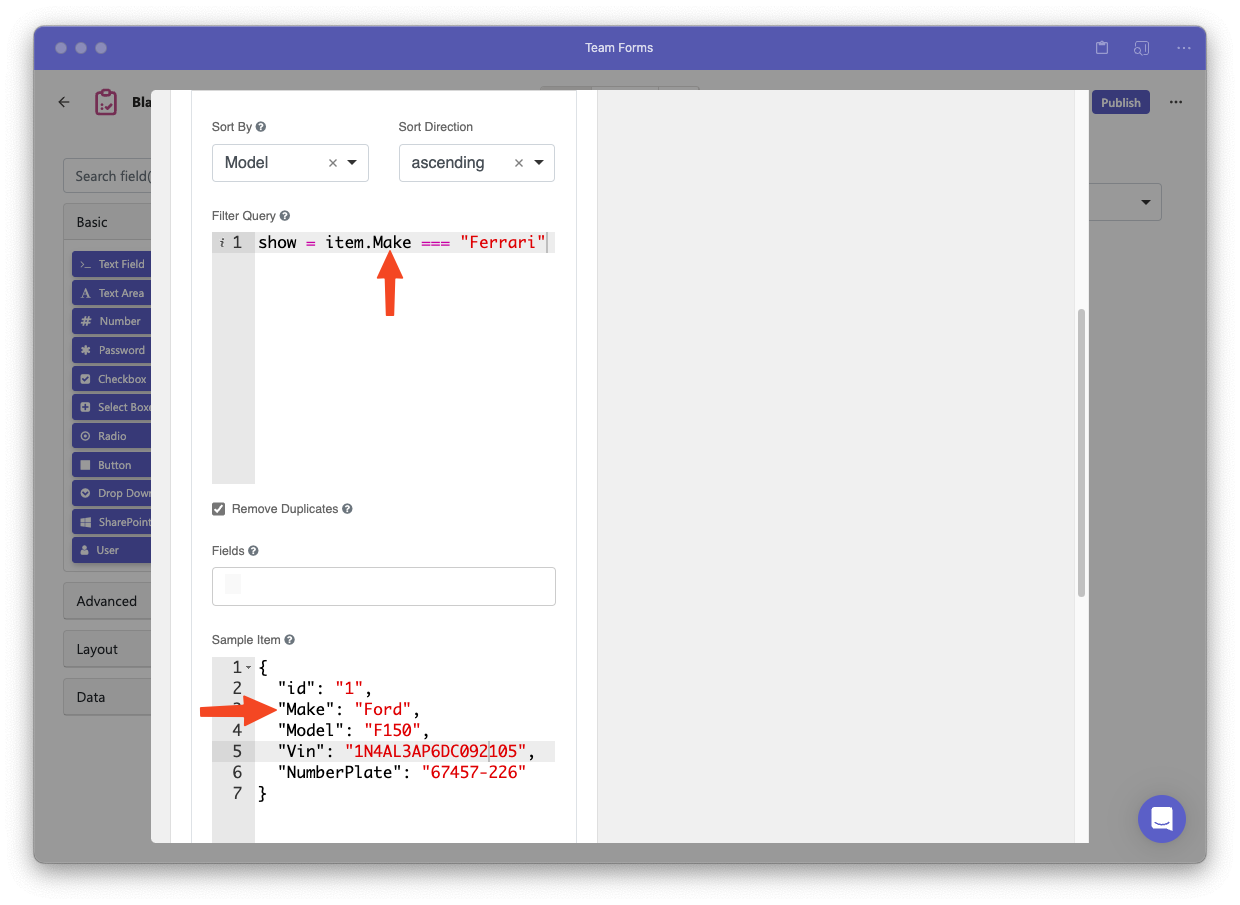
Field names and JavaScript comparisons are case sensitive.
The expression runs for each loaded row to determine whether it should appear in the drop-down menu.
| Variable | Description |
|---|---|
show | Assign true or false to control whether the current row appears. |
item | The current source row. Use exact, case-sensitive paths from Sample Item, such as item.FieldName. |
data | Current form answers, which can be used for cascading or context-dependent filters. |
The expression runs before the component applies sorting, the Fields projection, and duplicate removal. See the data-source component schema reference for the complete processing order.