
How to Adjust the Height of a Text Input Field
If you’re trying to change the height of a Text Field, it’s likely that what you really need is a Text Area.
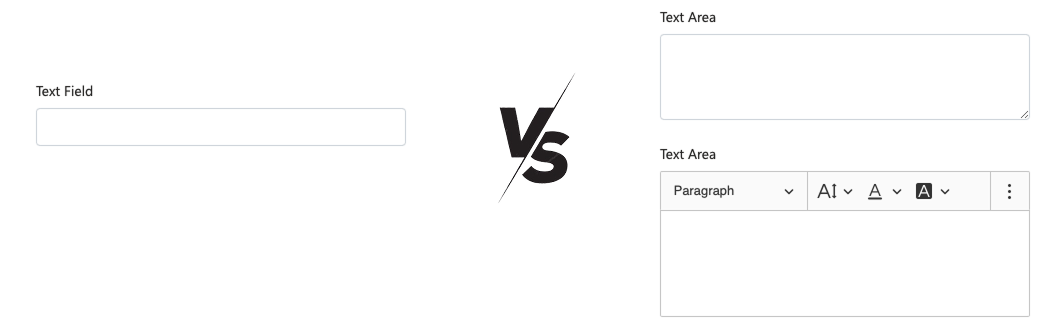
Text Field vs. Text Area
Section titled “Text Field vs. Text Area”-
Text Field is designed for short, single-line inputs (e.g., Job Title, Company Name).
-
Text Area is designed for multi-line input and can even support rich content like bullet points and headings.
Steps to Increase the Height of a Text Input
Section titled “Steps to Increase the Height of a Text Input”-
Replace the Text Field with a Text Area - If your form uses a Text Field, replace it with a Text Area component to allow multi-line input.
-
Adjust the Text Area Height
-
Select the Text Area component.
-
Navigate to the Display tab in the settings.
-
Adjust the “Rows” property to control the default height (the number of visible lines of text). Increasing the value make the Text Area taller.
-
-
(Optional) Enable Auto-Expand
-
Still in the Display tab, toggle “Auto Expand” to ON.
-
This allows the Text Area to automatically grow in height as the user types more content.
-