
Working offline
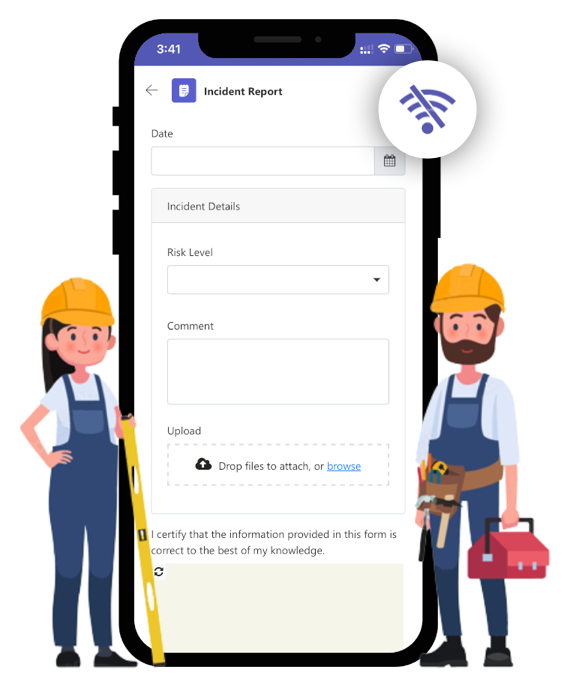
One of the unique features of Teams Forms is the ability to submit forms whilst offline. This capability will enable field service workers to access forms, data sources and submissions whilst in network-constrained environments like on a mine site. The user can continue to use Team Forms with the peace of mind of knowing that all data is stored securely on their local device and will sync up to SharePoint when network connectivity is available. No additional development or configuration is needed to make a form function offline, as this is handled by Team Forms.
When using mobile we recommend installing Team Forms (running outside of the Microsoft Teams app) for maximum offline compatibility.
Make a response available offline
Section titled “Make a response available offline”Your own drafts are kept on your devices automatically. Responses you open from a link or the submissions screen, such as a draft a colleague shared with you, open online and aren’t saved to your device unless you choose to.
To work on one of these responses offline:
- Open the response while you’re online.
- Select … (Options) and choose Make Available Offline.
- Confirm by selecting Make Available Offline.
The response is saved to your device as it’s currently shown, including any changes you haven’t saved yet. It stays available offline for 30 days, after which it’s removed from your device.
- Drafts autosave on your device, and your changes are uploaded to the shared draft automatically whenever you’re online.
- Submitted responses can be downloaded when editing submissions is allowed for the form. Your changes are kept on the device and uploaded when you submit the response again.
- Responses that are going through an approval can’t be downloaded.
To remove a downloaded copy, select … > Remove Offline Copy. This removes it from your device only; the online response isn’t deleted. A copy with changes still waiting to upload can’t be removed until they have been uploaded.
If the online version changed
Section titled “If the online version changed”If someone else changes the response before your offline changes are uploaded, your changes are kept on the device and Team Forms asks you to choose:
- Use Online Version replaces your copy with the latest online version and discards your changes.
- Upload My Version uploads your changes over the online version.
Once a response is submitted it stays submitted, so a draft copy can’t be uploaded over a response that has since been submitted. See Collaborate on shared drafts.