
Workflows and integrations
Team Forms can start business processes after a response is submitted, run approvals, update Microsoft 365 data, and feed reporting tools. Choose the simplest integration that fits the process.
Power Automate
Section titled “Power Automate”The Team Forms connector provides a When a new form response is submitted trigger and actions for retrieving teams, forms, responses, attachments, and generated PDFs. Select the team and form in the trigger, then use response fields in later Power Automate steps.
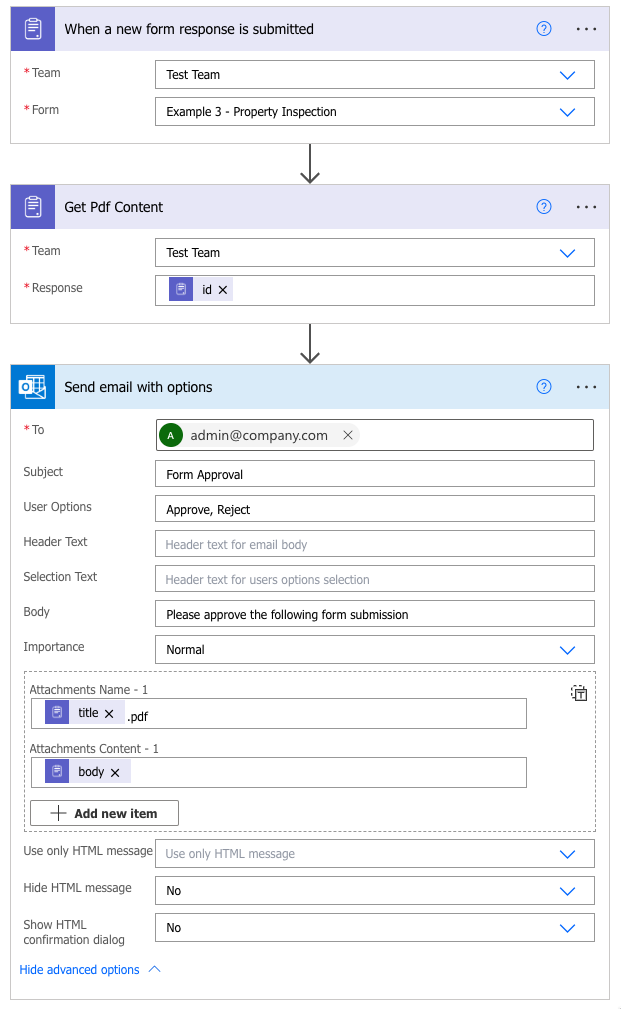
Start with a connector template for common processes such as notifications, approvals, or writing submission data to another system. Build a custom flow when the process needs organisation-specific conditions or actions. The Power Automate integration reference lists the available connector actions.
Use Monitor and re-trigger workflows to inspect individual requests or run selected workflows across multiple submissions. Bulk runs can retry failures, repeat actions for all selected submissions, or process only submissions with no recorded attempt for a workflow. The last option is useful when connecting a new workflow to an existing form. If a response can be edited, decide whether resubmission should start the flow again; see Prevent Power Automate triggering when resubmitting.
Approvals and Microsoft 365 actions
Section titled “Approvals and Microsoft 365 actions”Approval workflows can route a submission through one or more decision makers. Conditions can choose the approver or skip stages based on response values. See the multi-step approval tutorial and conditional approvals.
Other common automations include posting in a Teams channel and populating a SharePoint list.
Reporting and advanced integrations
Section titled “Reporting and advanced integrations”Use the Power BI integration for reporting across response data. Advanced forms can also respond to form events, run custom button actions, or call an API. These options execute custom code and should be reviewed and tested like application code.