
PDF documents
Team Forms automatically generates a read-only PDF when a response is submitted and stores it with the response in the team’s SharePoint document library. Use the builder’s PDF tab to preview that output before publishing.
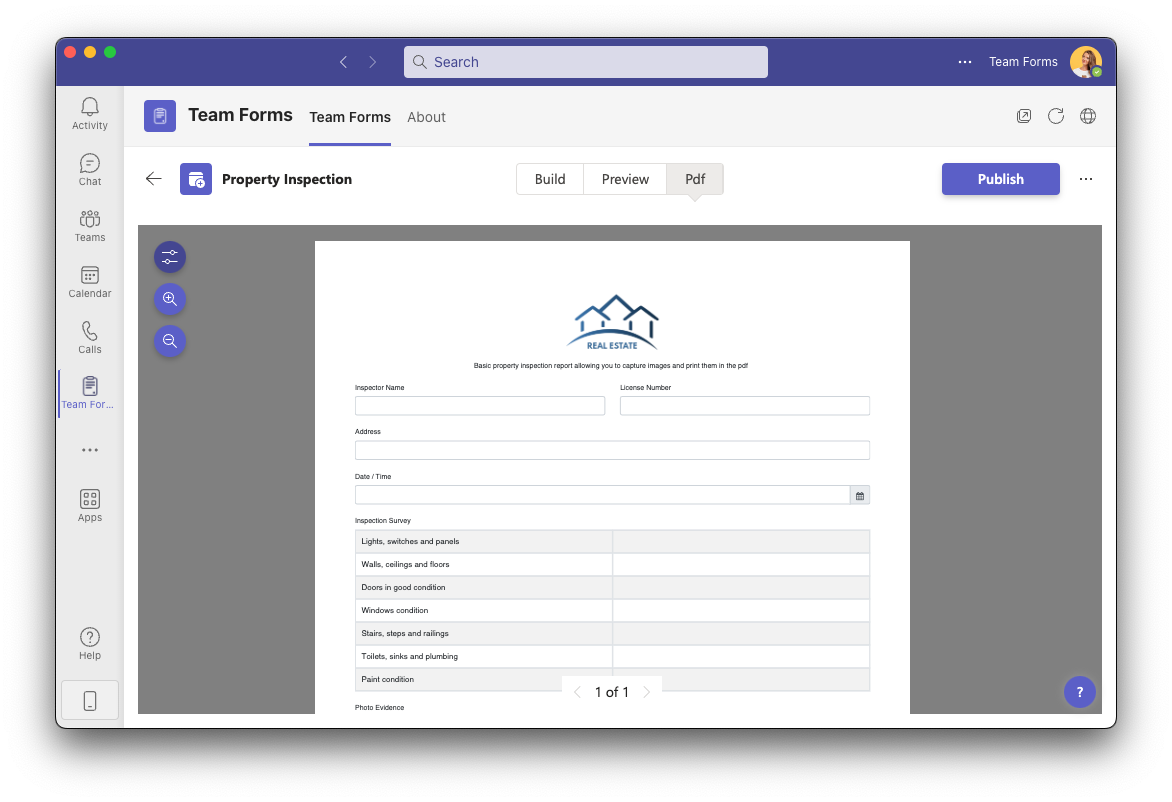
Configure the document
Section titled “Configure the document”Open the settings button in the PDF preview to configure page orientation, margins, scale, headers, and footers. Headers and footers can contain HTML and dynamic response values, page numbers, form metadata, and dates.
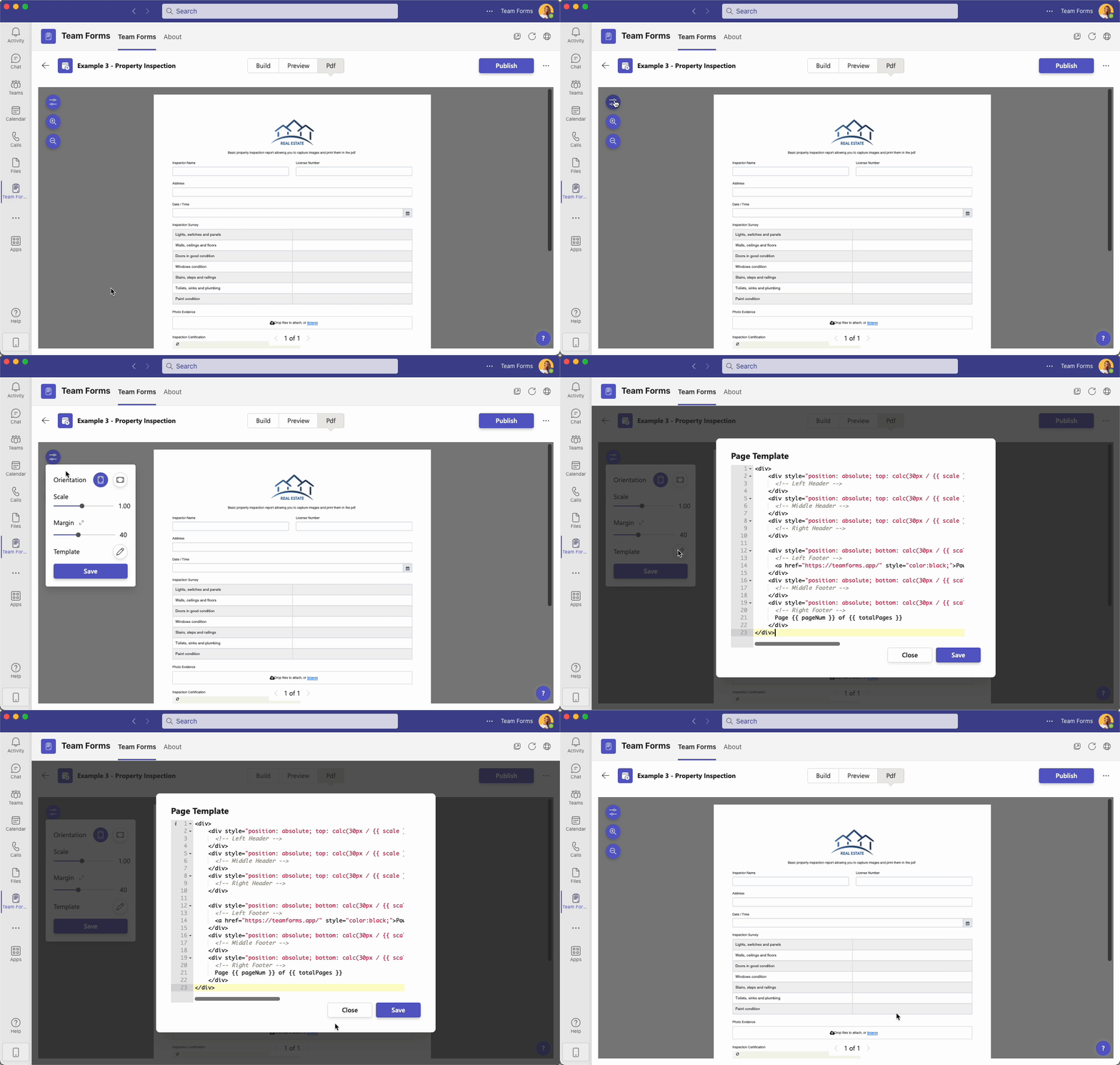
Start with the preview generated from the form layout. Add PDF-specific CSS or template customisation only where the standard layout does not meet the document requirement. Browser and PDF rendering differ, so always check the PDF preview after styling changes.
The detailed PDF generation reference lists the variables available to header and footer templates.
Common customisations
Section titled “Common customisations”- Add page breaks
- Add a watermark
- Display uploaded images
- Hide a component from the PDF
- Customise the folder and filename
- Remove input borders in the PDF
Authorised users can download a PDF from an individual response, regenerate it after an edit, or bulk-download documents for several responses. See manual PDF download, regenerating a PDF, and bulk download.
In source JSON, components use pdfVisibility: "visible" | "hidden" | "hideIfEmpty". Browser-form visibility is controlled separately by hidden or conditional logic. See the form schema PDF visibility reference for exact behaviour.