
How to check what subscription plan I have
Team Forms subscriptions are managed on a per-team basis, where each team corresponds to a Microsoft Teams group. The exception is Enterprise plans, which are managed at the tenant level.
How you check your subscription depends on where you’re using Team Forms — in a Teams channel tab, the personal app, or your browser. Because the steps differ slightly, we recommend checking from your browser. The browser steps also work if you’re using the personal app in Teams.
Check in your browser (recommended)
Section titled “Check in your browser (recommended)”-
Open Team Forms in your preferred browser by navigating to web.teamforms.app.
-
When prompted, add your team to the workspace and wait for your forms to sync. This may take a few seconds.
-
Under the team name, you’ll see a label indicating the plan your team is on.

Check in a Teams channel tab
Section titled “Check in a Teams channel tab”-
Open the tab settings by right clicking on tab heading and selecting Settings.
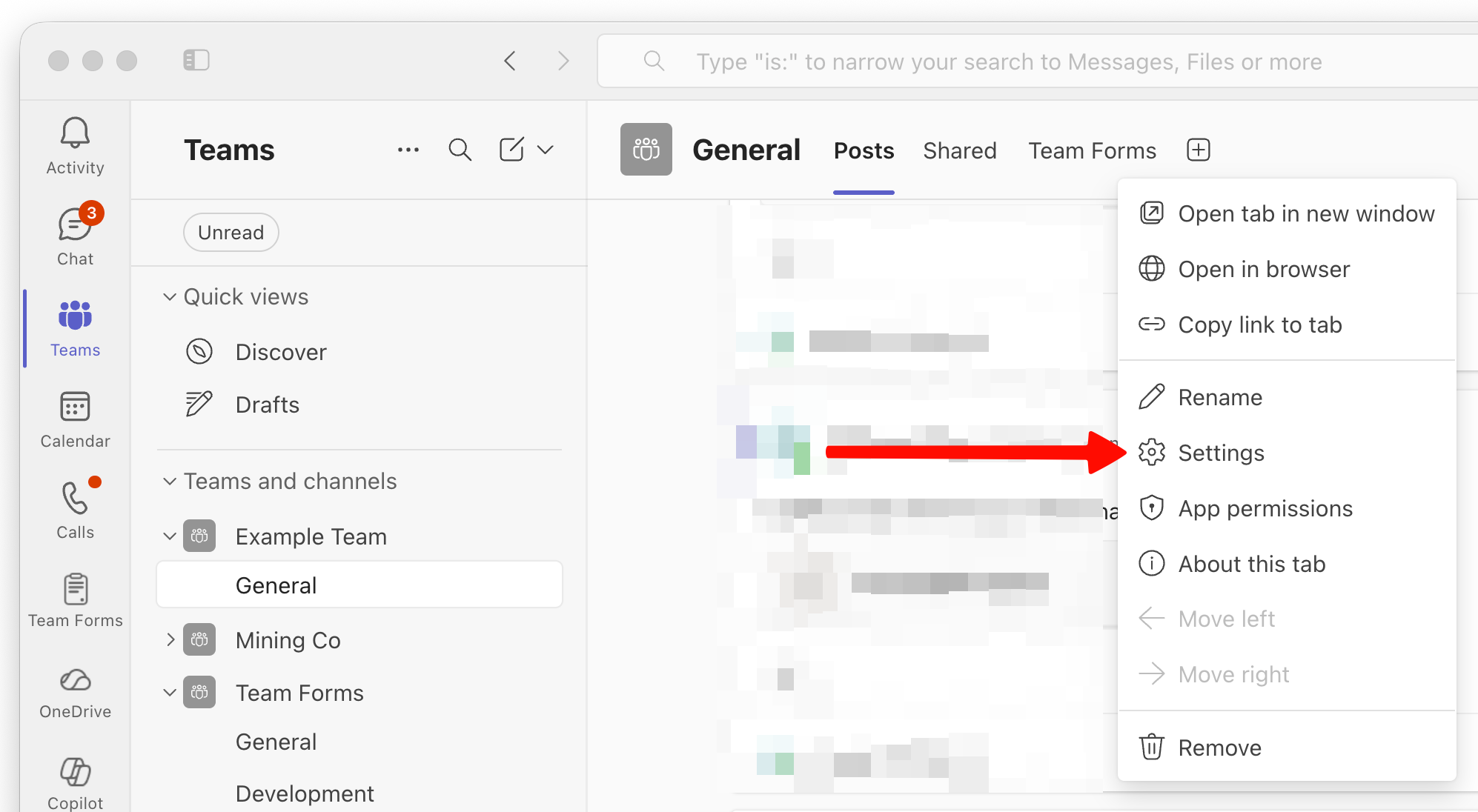
-
In the popup, go to the Subscription tab.
-
The plan with a green tick next to it is the plan your team is on or no tick if you are on the free tier.
Here is an example of what you should see under the free tier
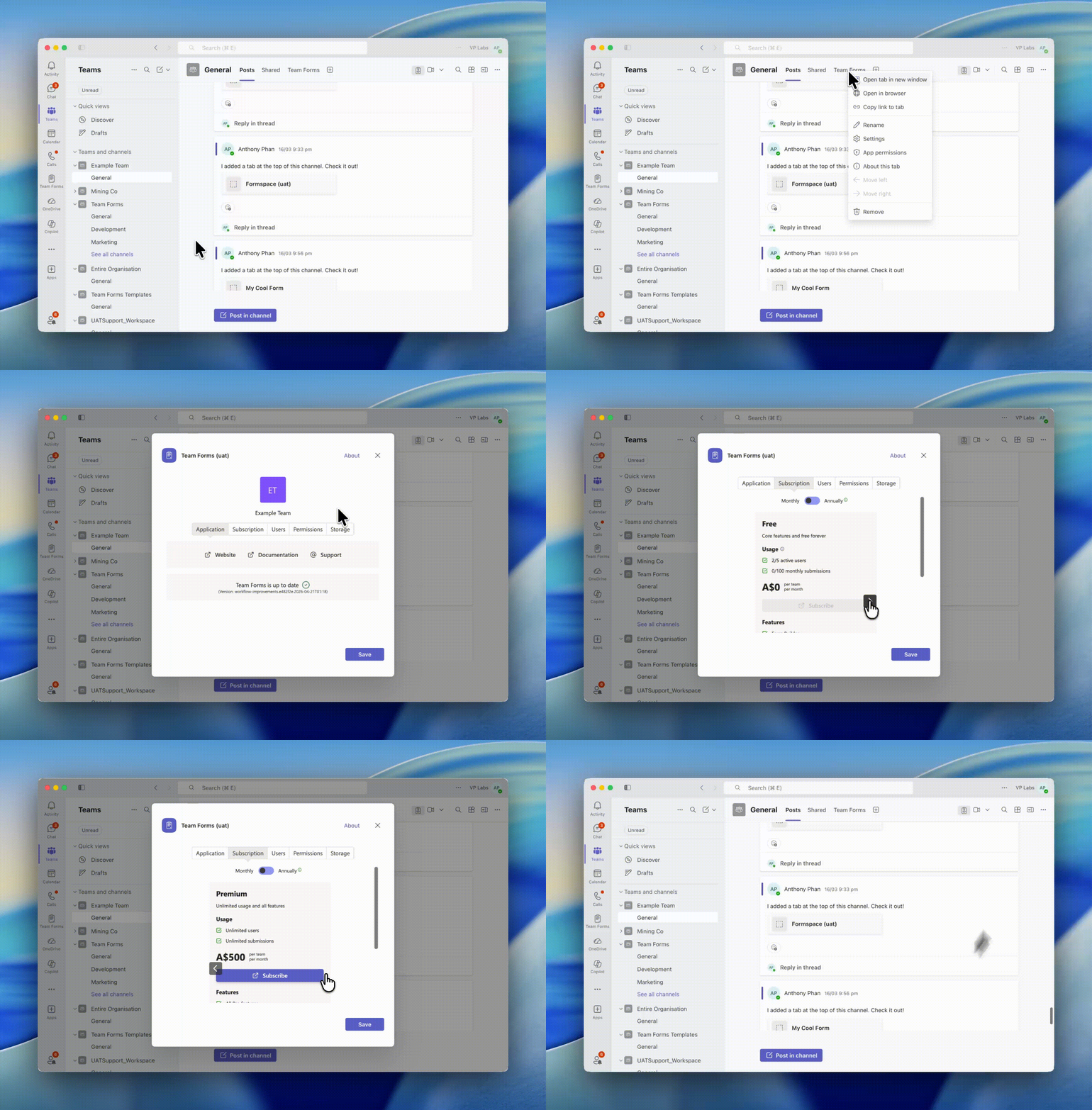
Remember: subscriptions are on a per-team basis, so make sure you’re looking at the subscription for the correct team.