How to Change the Color of a Panel Header
Panels are a great way to visually separate sections within your form. In some cases, you may want to change the color of a panel header to match your branding or to improve visual clarity. Below are two ways to customize panel header colors in Team Forms.
Option 1 – Using Themes (Recommended)
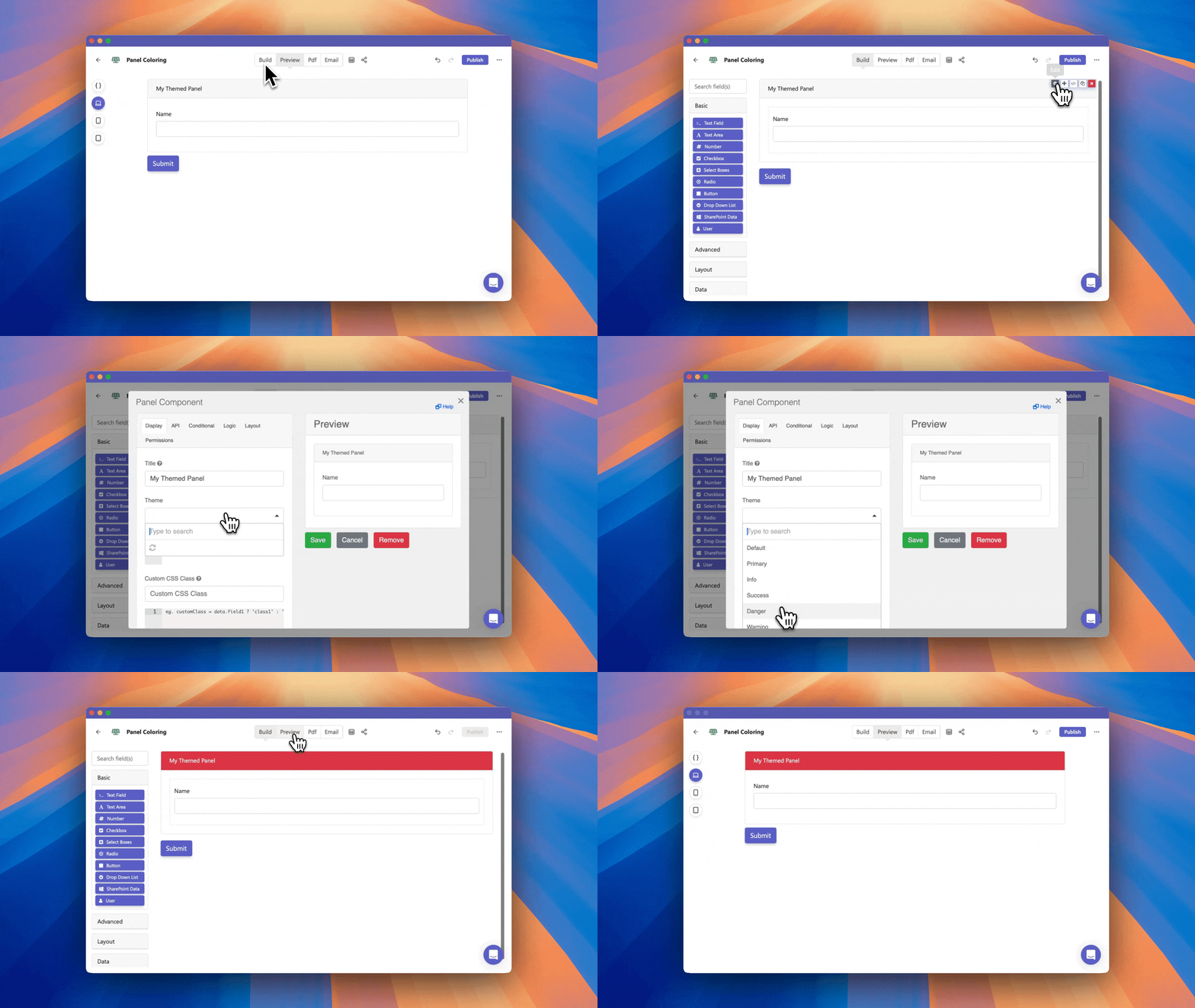
Section titled “Option 1 – Using Themes (Recommended)”The easiest way to change the color of a panel header is by using one of the pre-configured themes available in the panel settings.
To apply a theme:
-
Open the panel component settings in the form builder.
-
Go to the Display tab.
-
Locate the Theme property and select a theme color that suits your form design.
This method requires no coding and is perfect for quickly styling your form with minimal effort.
Option 2 – Custom CSS (Advanced)
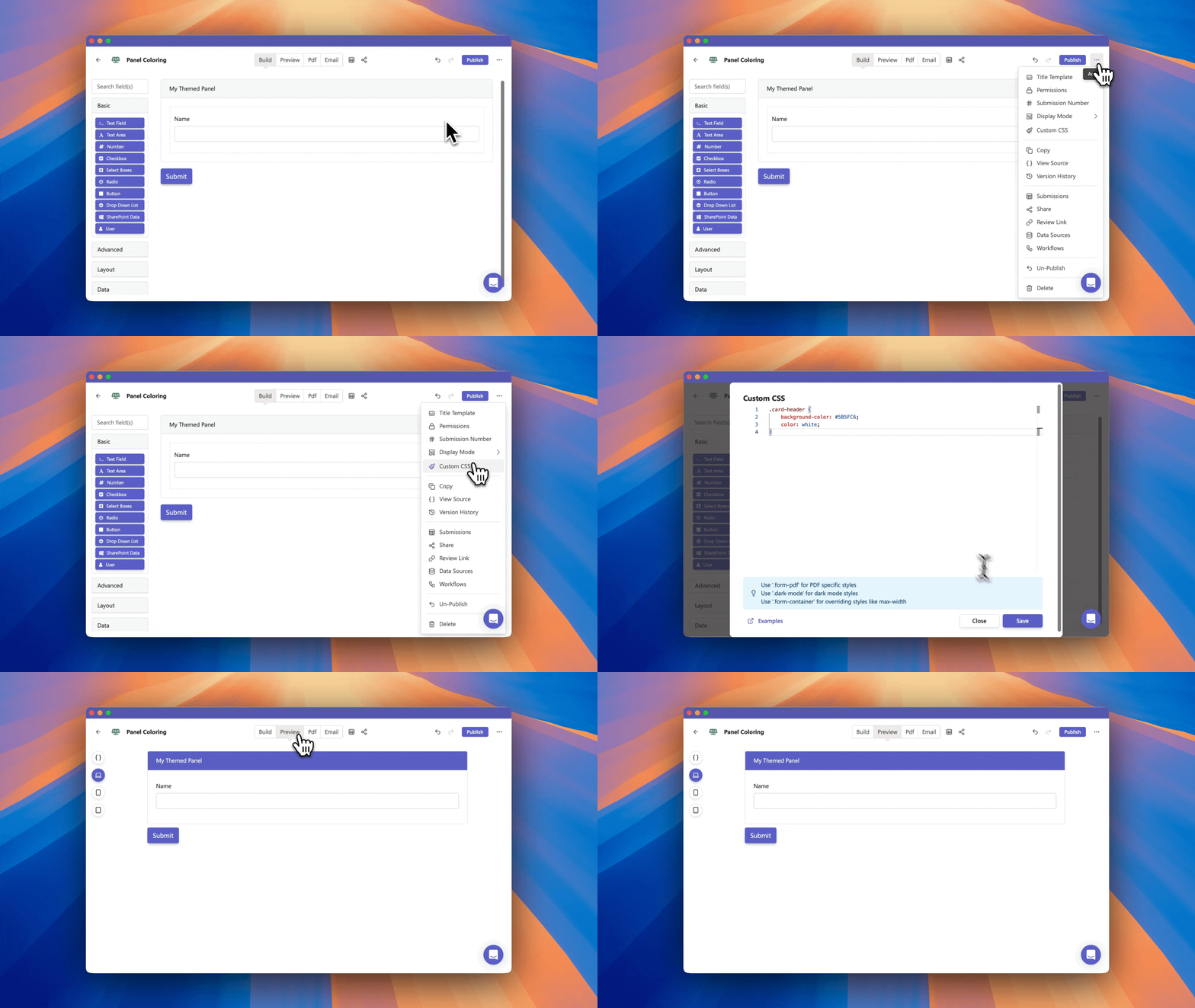
Section titled “Option 2 – Custom CSS (Advanced)”For more flexibility and control over the panel header’s appearance, you can use the Custom CSS feature.
Note: This option is only available to paid subscribers.
To apply custom CSS:
-
Open your form in the form builder.
-
Click the “…” menu in the top right corner, then select “Custom CSS”.
-
Add the following CSS to the editor. You can modify the colors to suit your design:
.card-header { background-color: #5B5FC6; color: white;}This will change the panel header background to a custom color and set the text color to white.