
Dynamic email templates
Team Forms email templates use Handlebars. Dynamic content can be used in To, Cc, Bcc, the subject, the body, and attachment filenames. It is not JavaScript: use {{ data.fieldKey }}, not ${data.fieldKey}, optional chaining, or assignments.
Type / in the email editor to browse values from the form schema and Team Forms response metadata.
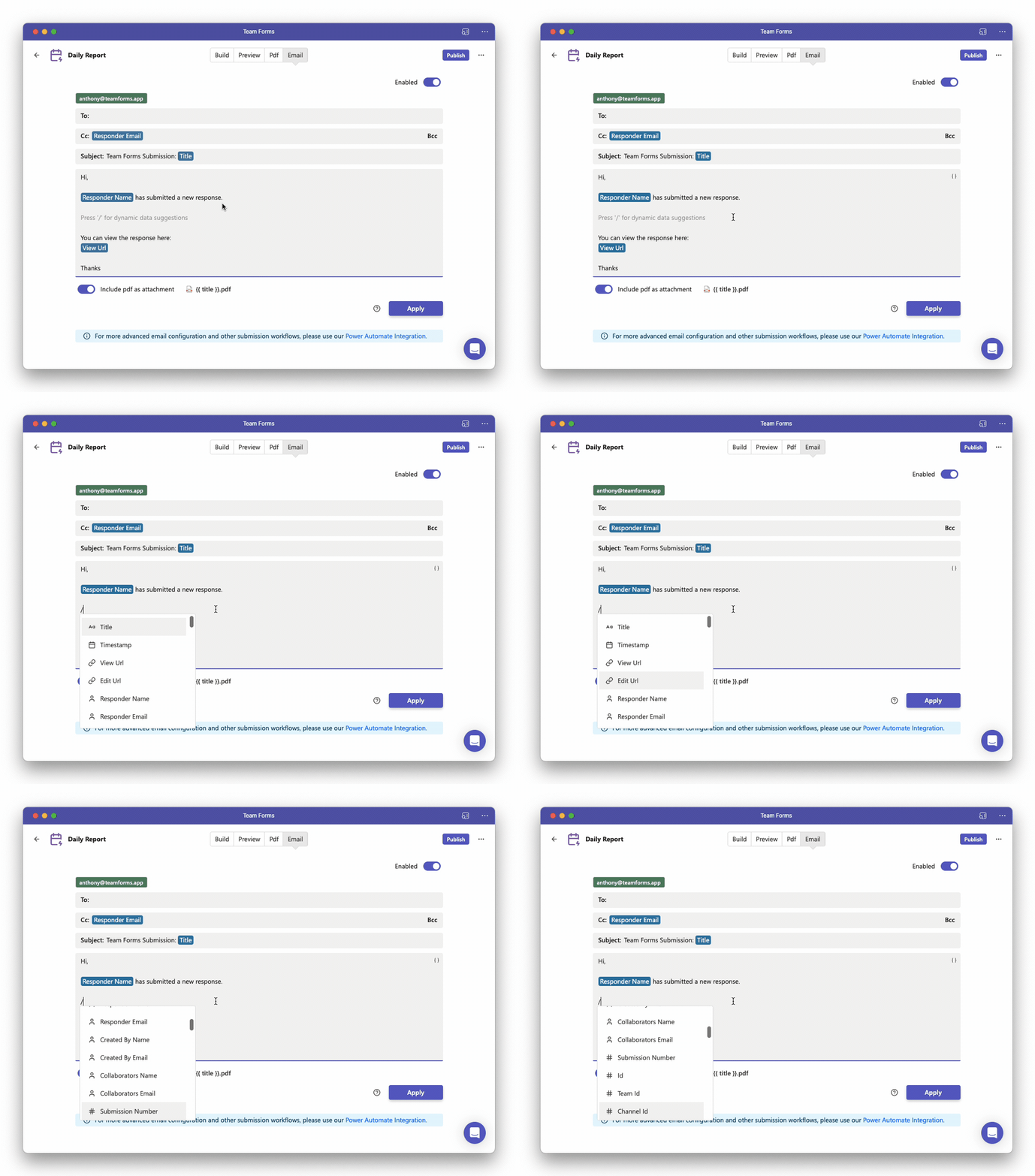
Insert response values
Section titled “Insert response values”Form answers are under data and use the component’s API key:
Hi {{ data.requesterName }},
We received request {{ title }} for {{ data.department }}.
View it here: {{{ viewUrl }}}
Use double braces for normal form answers. Triple braces are reserved for trusted HTML or generated values such as viewUrl, editUrl, and the PDF attachment placeholder.
Add conditions
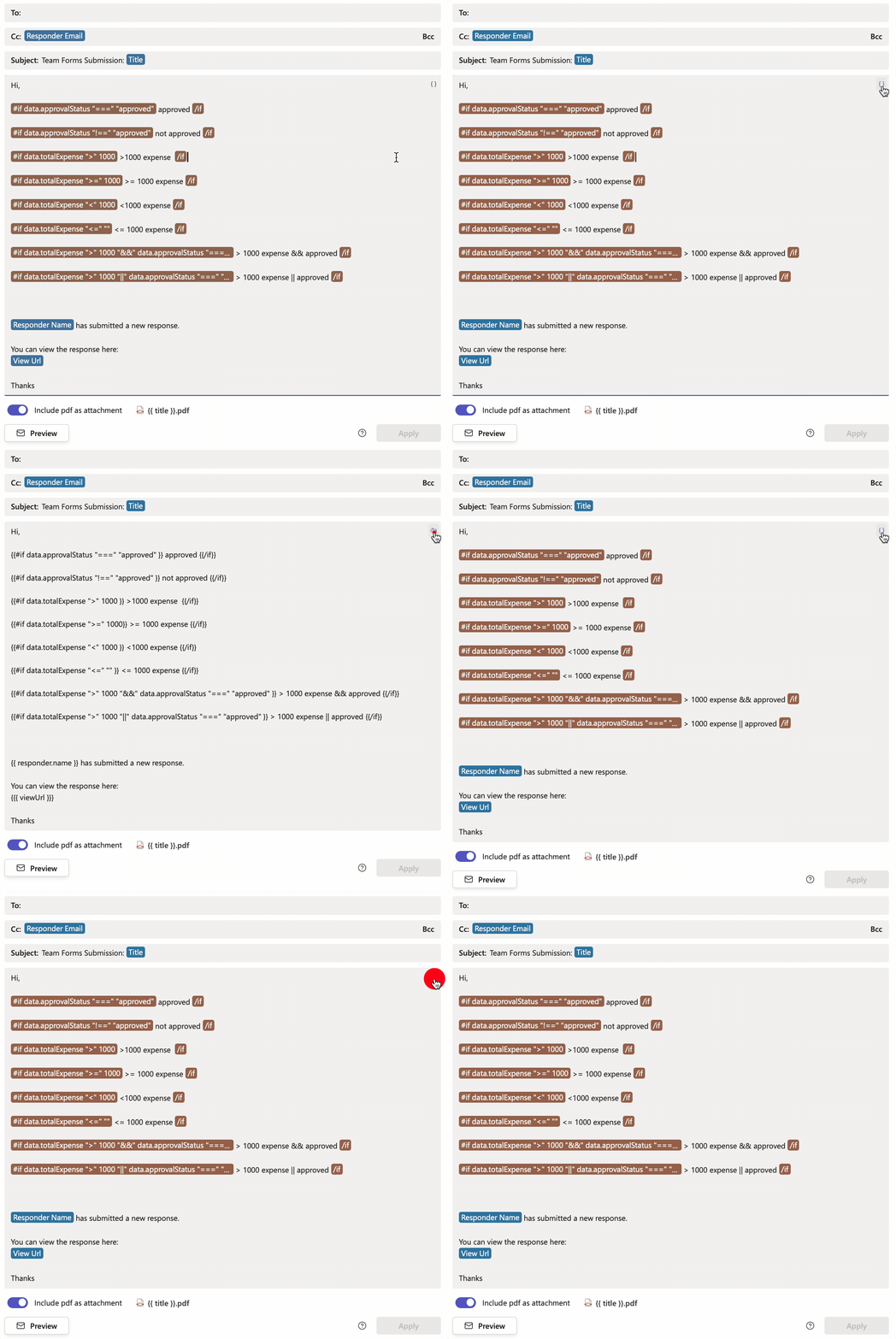
Section titled “Add conditions”Use a Handlebars #if block. Team Forms supports ===, !==, <, >, <=, >=, &&, and || operators:
{{#if data.totalExpense ">" 1000}}This request requires additional review.{{else}}This request follows the standard review process.{{/if}}Operators are quoted string arguments. Quote literal text values, but not numbers, booleans, or data paths:
{{#if data.totalExpense ">" 1000 "&&" data.approvalStatus "===" "approved"}}The high-value request is approved.{{/if}}Repeat rows and format dates
Section titled “Repeat rows and format dates”Use #each for arrays such as data-grid rows:
{{#each data.lineItems}}{{ this.description }} — {{ this.quantity }}{{/each}}Use the dateFormat helper for date fields and submission timestamps:
{{ dateFormat data.requiredBy "DD MMMM YYYY" }}{{ dateFormat timestamp "YYYY-MM-DD HH:mm:ss" "Australia/Perth" }}The editor shows dynamic expressions as pills. Select the {} code-view button to inspect or edit their underlying Handlebars syntax.
For every available response value, approval-specific values, escaping rules, operators, and attachment placeholders, see the email template syntax reference.