
How to regenerate the PDF
Every time a response is submitted, Team Forms automatically generates a PDF and stores it in SharePoint. This provides a document-controlled, paper equivalent of the response that you can download at any time.
When viewing a submission, selecting ⋯ > Download PDF downloads the PDF currently stored in SharePoint. This is the PDF generated the last time the response was submitted, including any subsequent re-submissions. It does notgenerate a new PDF.
In most cases, you won’t need to regenerate a PDF. However, if the original PDF has an issue or you have an internal business requirement to generate a new copy, you can do so without asking the user to re-submit the response.
Regenerating the PDF
Section titled “Regenerating the PDF”-
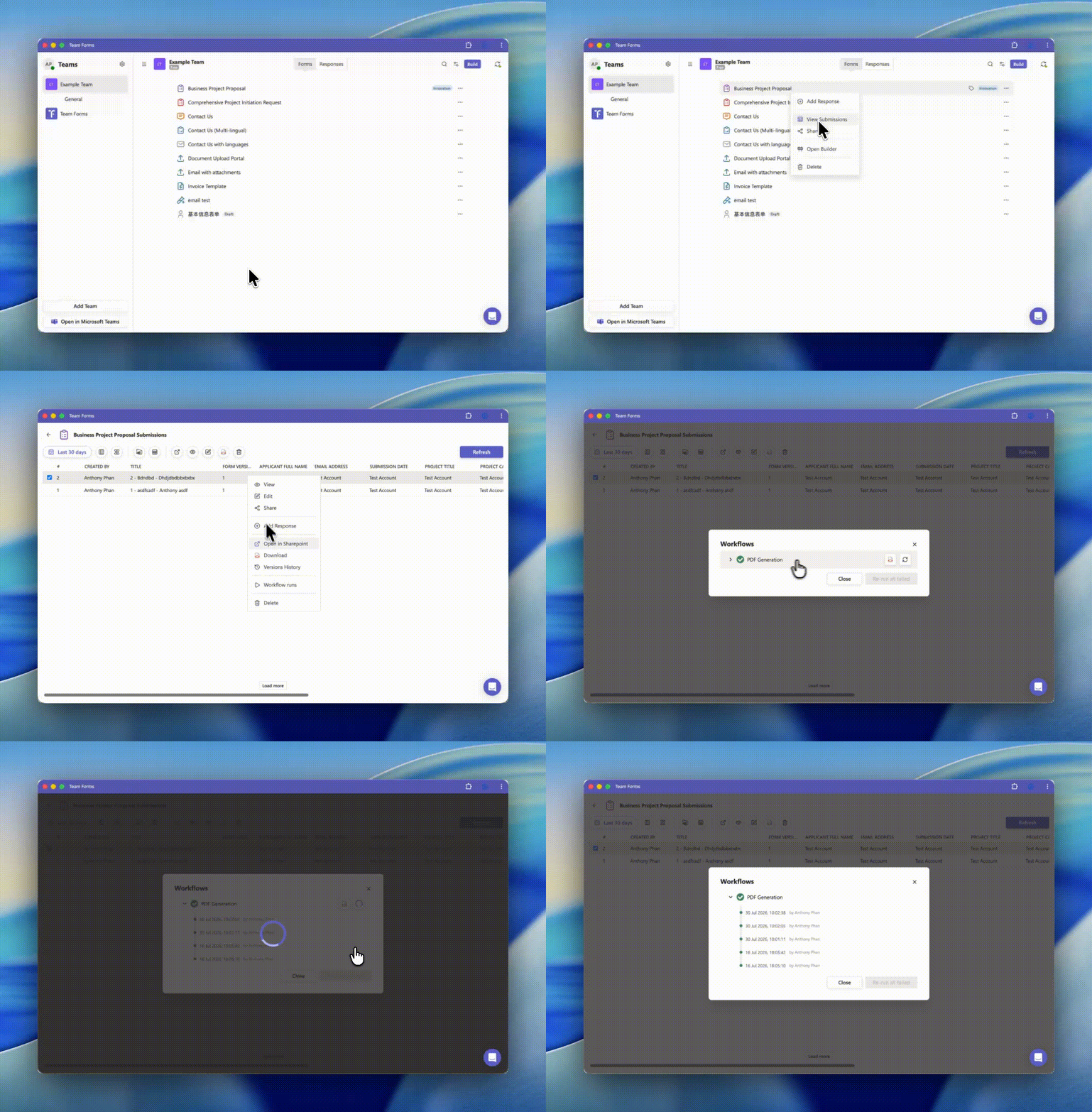
Open the Submissions screen and locate the response you want to regenerate.
-
Right-click the response and select Workflow Runs.
-
Locate the PDF Generation workflow run.
-
Hover over the workflow run and click the Re-run icon.
Team Forms will generate a fresh copy of the PDF and replace the existing PDF stored in SharePoint.
Note: The existing PDF is replaced, however SharePoint version history is preserved. You can view previous versions of the PDF by expanding the workflow run in the Workflow Runs dialog.
Regenerating PDFs for multiple submissions
Section titled “Regenerating PDFs for multiple submissions”Select the submissions using their row checkboxes, choose Re-run workflows, and check PDF generation. All actions start unchecked, so you can regenerate PDFs without selecting email notifications or connected workflows.
Choose All selected submissions to replace the saved PDFs for every selected submission. Choose Failed workflows or Workflows not run yet to generate only missing or invalid saved PDFs. These two options leave existing valid PDFs in place.
Select Run workflow or Re-run failed to start, then review the completion summary. See Monitor and re-trigger workflows for the full bulk-run procedure.