How to Access the Full Resolution Image of an Uploaded File
When a user uploads an image to a form submission using the File component, that image can either be displayed directly in the form (and in the generated PDF) or appear as a link—depending on how the component is configured (for example, if “Display as image” is enabled).
If the image is displayed inline, what you see is actually a lower-resolution thumbnail. However, Team Forms always stores the original full-resolution image in your SharePoint library. If you need the full version, you can access it in a couple of ways:
Method 1: From the Submissions Table
Section titled “Method 1: From the Submissions Table”-
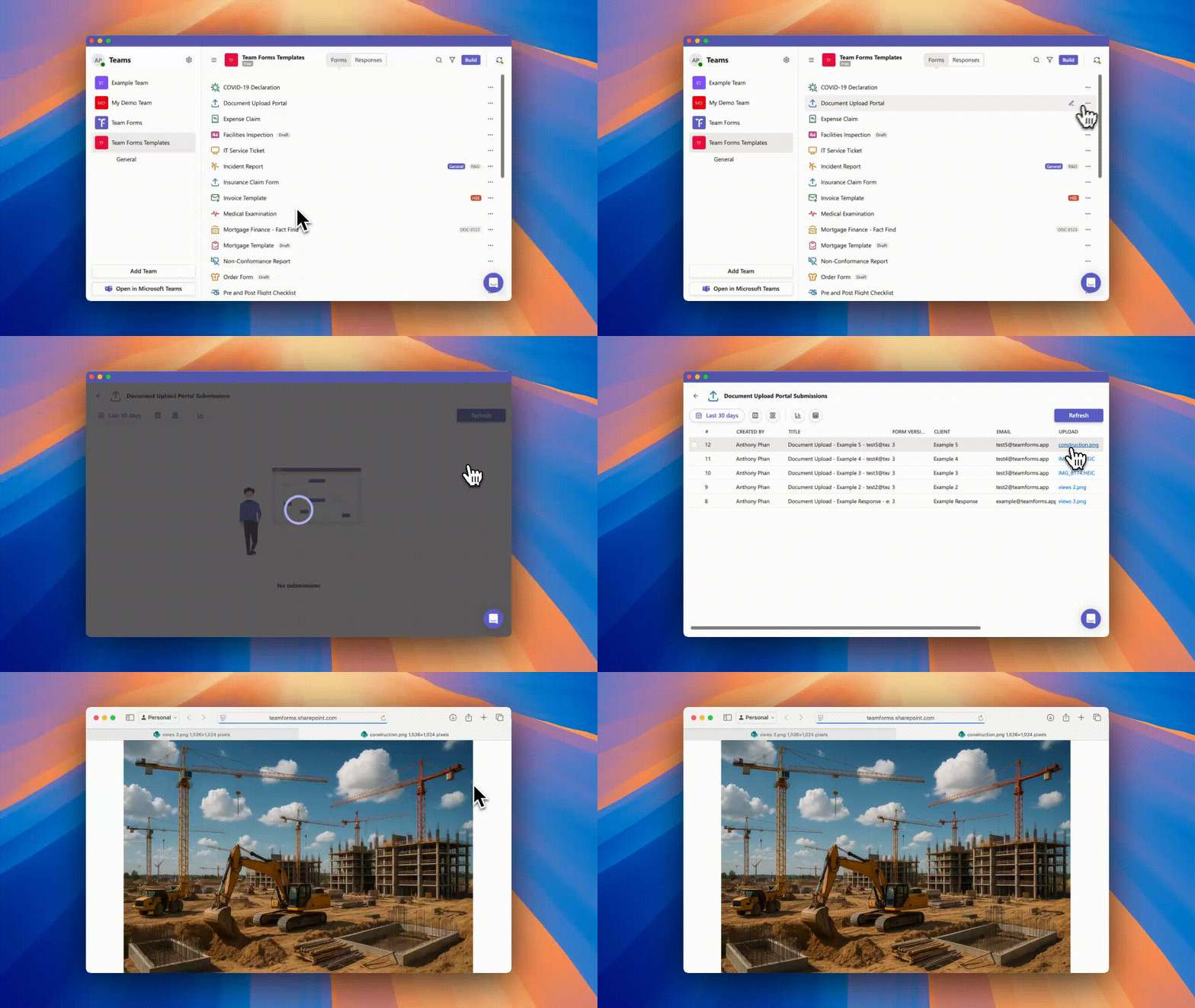
Hover over the form to reveal the “…” icon.
-
Click “View submission” to open the table view of responses (each question shown as its own column).
-
Find the response that contains the image. In the File/Attachments column, click the link.
This will open the file directly in SharePoint in its original resolution
Method 2: From the Individual Response
Section titled “Method 2: From the Individual Response”-
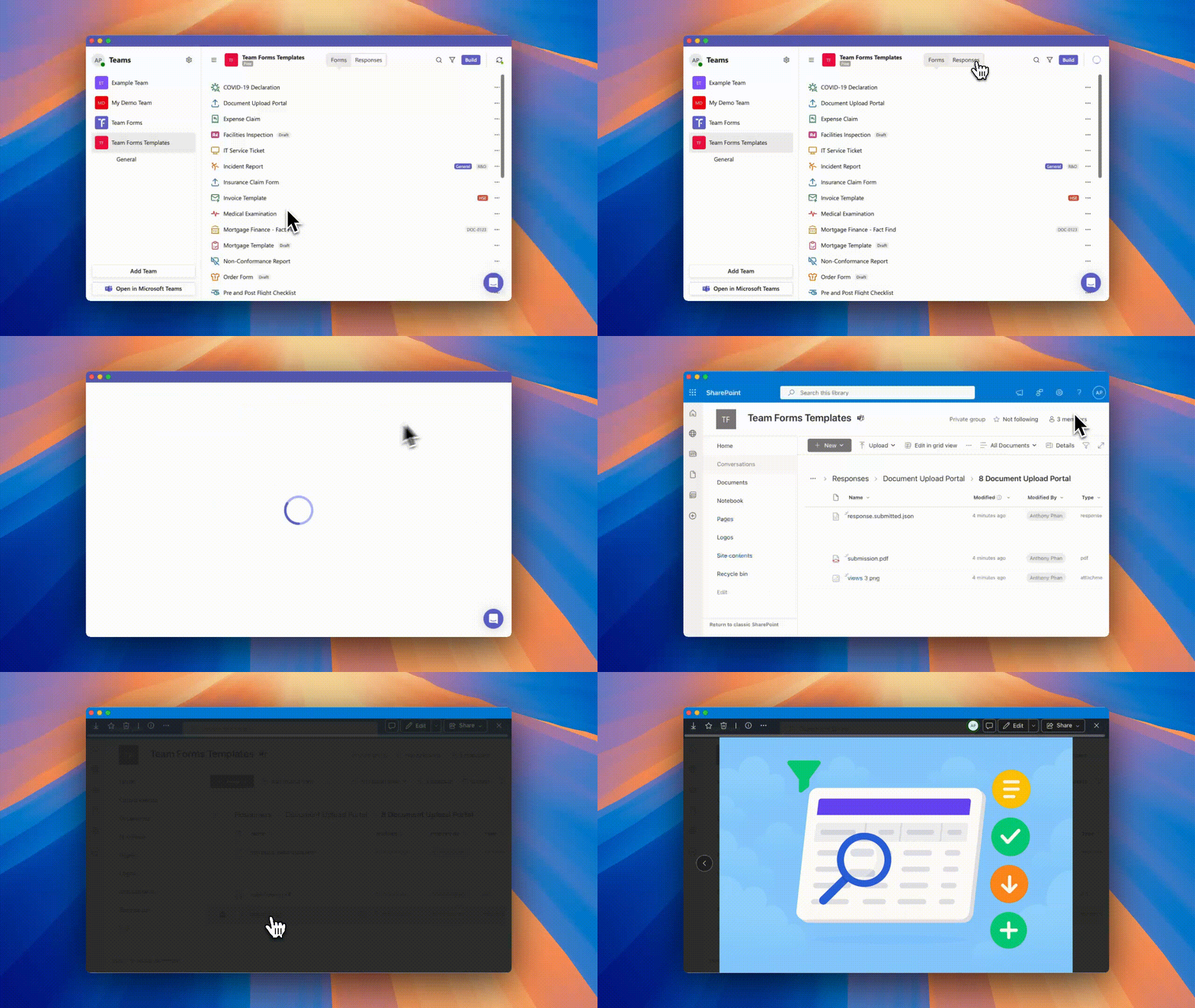
Open the response that contains the uploaded files. You can do this from the Responses tab, the Submissions screen, or even via a direct link.
-
In the top-right corner, click the “…” menu.
-
Select “View in SharePoint.”
This will open the SharePoint folder containing all files for that submission, including:
-
The generated PDF
-
Any uploaded attachments (in full resolution)
-
Row data files (.json)
With these methods, you can always access the full resolution images exactly as they were uploaded, even if the form or PDF preview only shows a thumbnail.