
Team administration
Team settings control the subscription, permissions, and storage configuration for one team. The way you open them depends on where Team Forms is running.
Open team settings
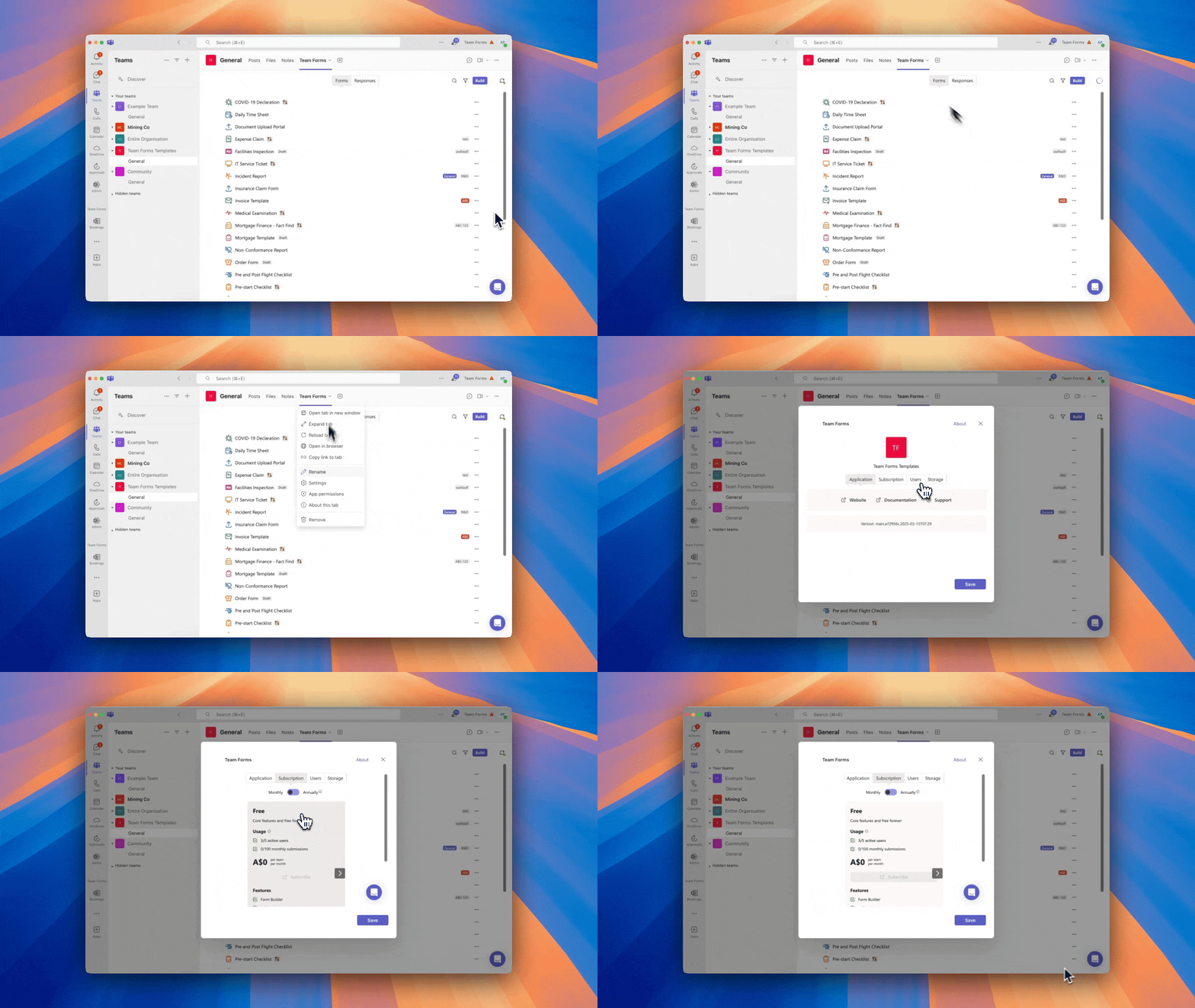
Section titled “Open team settings”In a Microsoft Teams channel tab, open the menu beside the tab name and select Settings.
In the web or personal app, hover over the team in the sidebar, open its … menu, and select Team Settings.
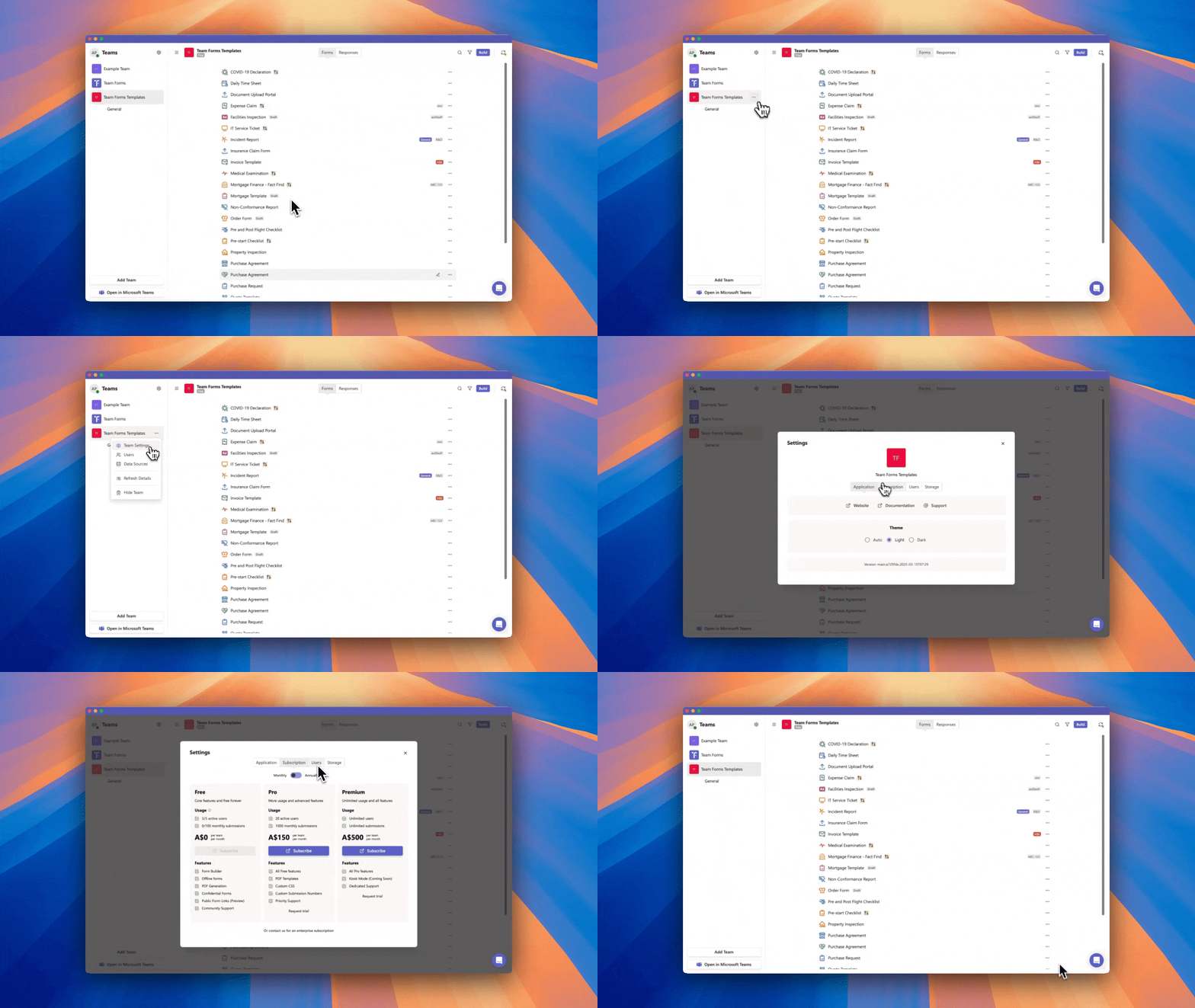
Settings apply to the selected team, so confirm the team name before changing permissions, storage, or subscription options.
Teams, channels, and users
Section titled “Teams, channels, and users”The workspace can include several Microsoft Teams. Add or remove teams from the Team Forms sidebar without changing the underlying Microsoft Team. Forms can also be copied or moved when responsibilities change.
- Add a team to your workspace
- Remove a team from your workspace
- Copy forms between teams
- Move a form to another Teams channel
- Troubleshoot a missing channel
User access is normally managed through the team’s Microsoft 365 membership and the Team Forms permission settings.
Storage, offline use, and synchronisation
Section titled “Storage, offline use, and synchronisation”Team Forms stores team-owned data in the team’s SharePoint environment. The app synchronises forms and responses so users can work reliably across devices and, where supported, offline. Microsoft 365 permissions, retention, versioning, and storage policies continue to apply.
See Where Team Forms data is stored, Access the team’s SharePoint site, Understand the sync process, and Troubleshoot sync issues.
Moving a complete solution between teams or tenants can involve forms, responses, attachments, PDFs, permissions, data sources, and workflows. Follow Migrating forms and responses rather than moving individual files manually.