How to Conditionally Send an Email Notification
Email notifications allow you to automatically send messages that include dynamic content, such as links or the response to specific questions. In some cases, you may only want the email to be sent when certain criteria are met—for example, only if a checkbox is ticked.
Send only on the initial submission
Section titled “Send only on the initial submission”To stop automatic emails when an existing response is resubmitted, open Email → Advanced settings, turn off Send email on resubmission, and select Apply. This setting is on by default. You do not need a conditional recipient expression for this. Preview emails and manually triggered notifications remain available. See Choose when notifications send.
Sending Emails Only Under Certain Conditions
Section titled “Sending Emails Only Under Certain Conditions”To set up a conditional email notification:
-
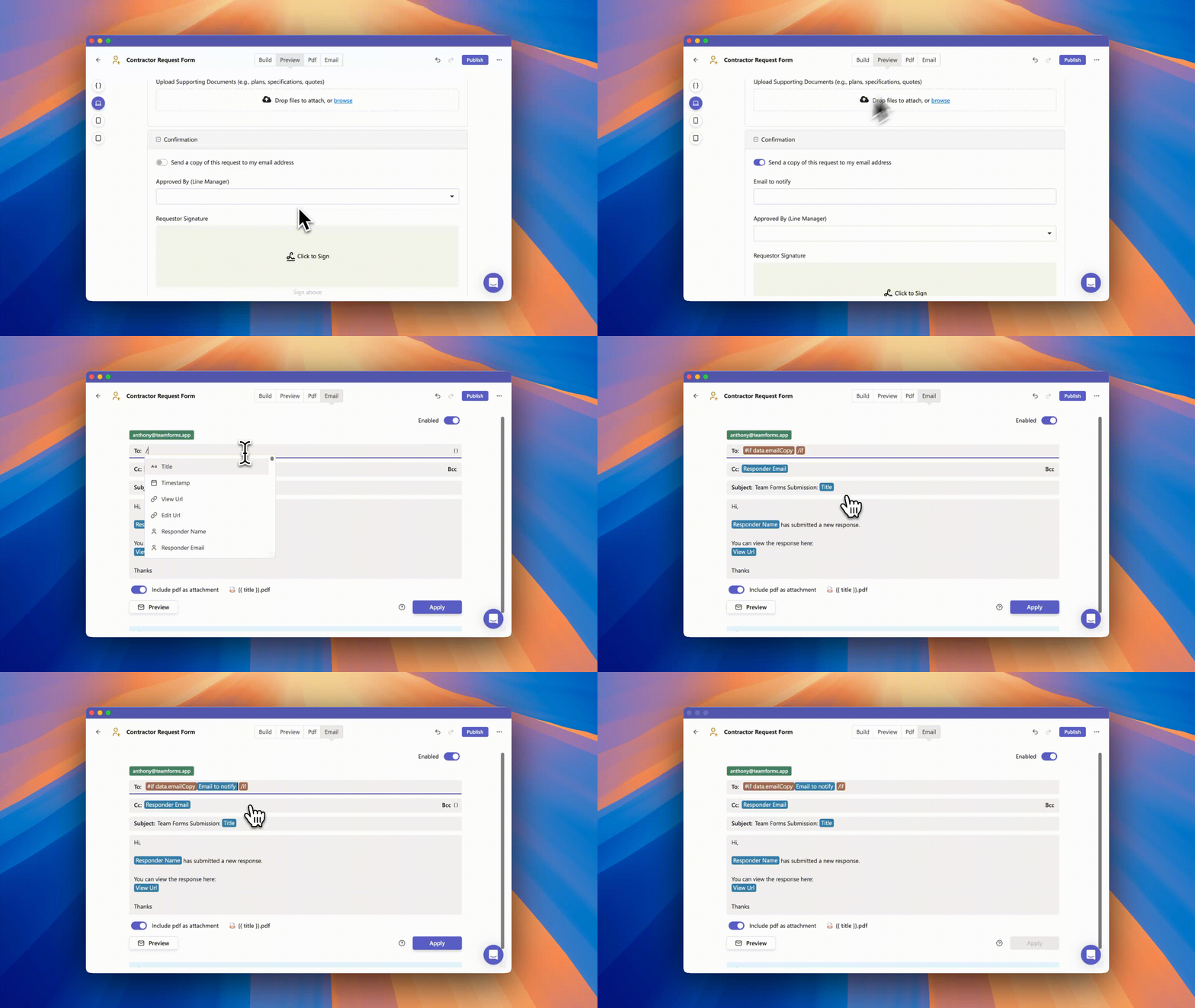
Create the email template as normal - Configure the subject, body, and any dynamic fields just as you usually would.
-
Use a dynamic field or conditional expression in the “To:” field Instead of entering a static email address, insert a dynamic field or conditional expression.The key idea is that the “To:” field should remain blank whenever you do not want the email to send.
-
When the condition is met (e.g. checkbox is selected), the dynamic field should resolve to the recipient’s email.
-
When the condition is not met, the dynamic field should resolve to a blank value. Since there is no address, the email will not be sent.
-